UX Teardown
Fizzy Review: A Hands-On Look at 37signals’ Minimalist Kanban Tool
Explore the Fizzy project management tool in my hands-on review to see how its minimalist Kanban design and unique pinned cards streamline your workflow.
7
min read
Introduction to Fizzy: The Newest Tool from 37signals
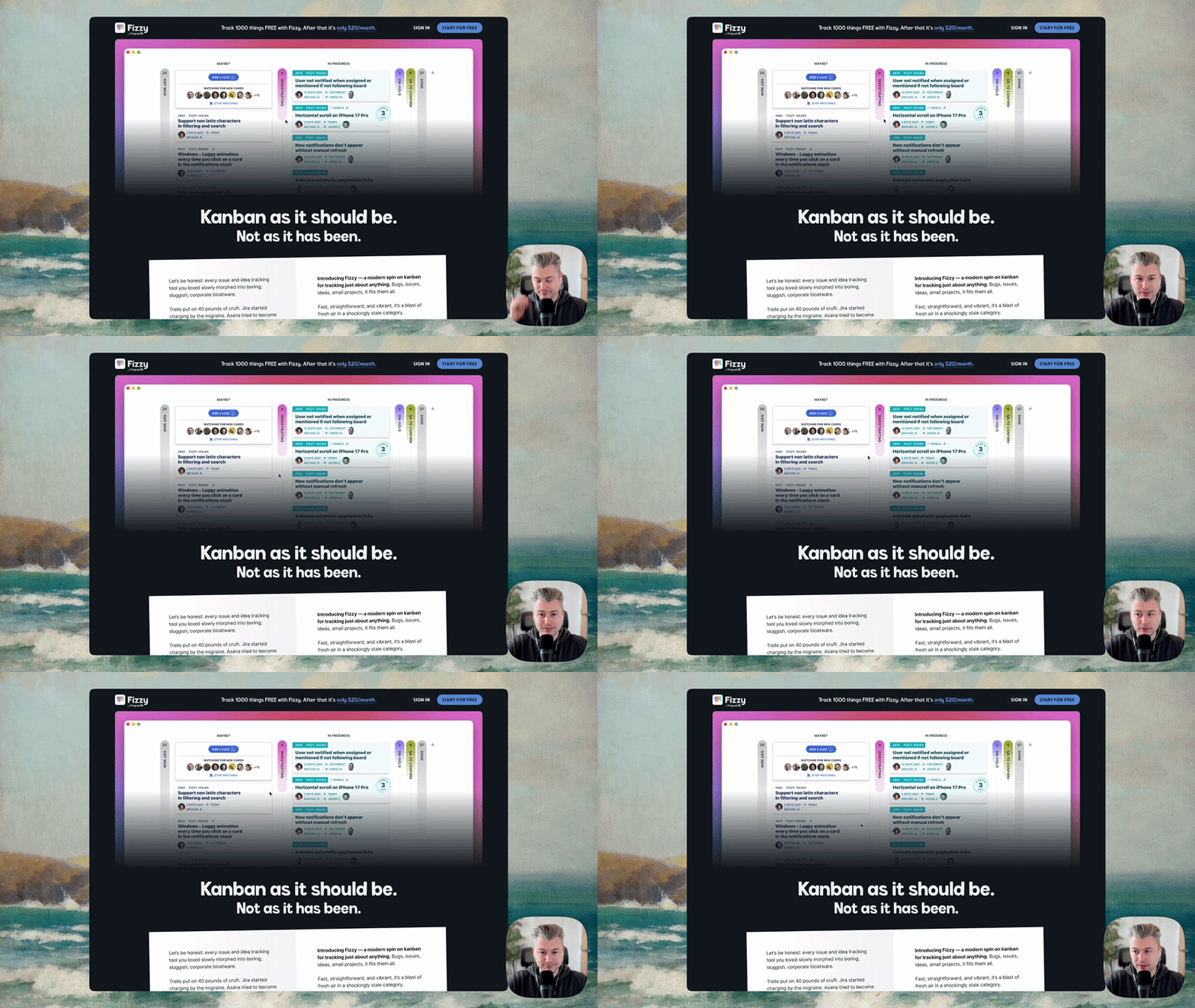
37signals has a track record that speaks for itself. The team behind Basecamp and HEY email has built products that consistently challenge how we think about productivity software, and their latest release is no exception. Fizzy is a minimalist Kanban-style project tool that strips away the bloat most teams have come to expect from task management platforms.
I signed up, poked around, created boards and cards, and formed some strong opinions. What follows is a full breakdown of what works, what's a little rough, and where the Fizzy project management tool sits in a crowded market. If you're a SaaS founder looking for inspiration or just curious about smart product design, there's plenty here worth your attention.
A Seamless Onboarding Experience
Signing Up in Under Thirty Seconds
The sign-up page is stripped back to its essentials. There's no lengthy form, no "tell us about your company" questionnaire, and no credit card required. You enter your email address, click a button, and you're moving. The page does mention that Fizzy is designed and built by 37signals, which serves as a subtle trust signal, but there's no heavy social proof on display yet. That makes sense for a new product.
One small observation: the subtext "enter your email address to create an account" feels redundant beneath a heading that already says "Sign up." It's a minor thing, but it hints at the kind of detail-oriented UI critique that's worth flagging early.
Minimalist Setup and User Verification
After entering your email, you're prompted for a verification code.
This is standard, though I'd love to see a quick link that opens your email client directly from the verification screen.
It's a tiny friction point, and one I've noticed across many SaaS onboarding flows over the years. Small details like this can shave seconds off time-to-value, and seconds matter when you're trying to keep a new user's momentum going.
Once verified, Fizzy asks for your name. It's an interesting choice to split this across multiple steps rather than bundling it into a single form. The reassurance copy here is clever: "You're just one step away" sets clear expectations and reduces anxiety. Then you click continue and you're in. No setup wizard, no template selection screen. You land directly inside a pre-built Kanban board called the "Playground."
This is a deliberate and, I think, very smart decision. Rather than asking users to configure something from scratch, Fizzy drops you into a working example so you can learn by doing. If users can't reach a first win in their first session, your onboarding is the problem. Fizzy clearly understands this.
Understanding the Fizzy Interface and Design Philosophy
The first thing you notice is the typography and spacing. Big, chunky text. Large form fields. Generous button sizes. Everything feels playful and confident. This visual language carries through from the sign-up page into the product itself, creating a consistent experience that doesn't require you to mentally "switch modes."
If you've used Basecamp or HEY, some of the UI conventions will feel familiar. For someone approaching Fizzy with fresh eyes, there's a short adjustment period. The interface doesn't follow every convention you'd expect from a typical Kanban tool, and that's both its strength and its occasional weakness. It takes a few minutes to build a mental model of how things connect, but once it clicks, the simplicity becomes the feature.
How Fizzy Reinvents the Kanban Board
Column Management and Colour Coding
The Playground board opens with 3 default columns: "Not Now," "Maybe," and "Done." Cards sit inside these columns, and each column has its own colour. In dark mode the colour differences are subtle, but they're there: blue for "Maybe," green for a custom column, and so on.
Adding a new column is dead simple. There's no modal that pops up and blocks your view. Instead, an inline menu appears where you type the column name, pick a colour, and click "Add." The whole interaction takes about 3 seconds. You can drag cards between columns exactly as you'd expect from any Kanban board, and the column counts update in real time.
One thing I couldn't immediately figure out was how to rearrange column order. The "move left" and "move right" options existed in the column menu but appeared disabled. That's either a restriction of the current build or something I missed, but it's worth noting as a potential friction point for teams who want precise control over their workflow stages.
Here's what's genuinely novel: you can only expand a set number of columns at once.
This prevents the classic Kanban problem where your screen becomes a wall of tickets and your brain just shuts down. It's a constraint that reduces cognitive load, and I think most teams will appreciate it once they get used to it.
Focused Card Creation and Content Editing
Creating a new card pulls your focus entirely onto that task. The rest of the board fades away, and you're presented with a clean editor: title field, content area with a WYSIWYG toolbar, and the ability to add tags on the fly. No distractions, no other cards competing for your attention.
New cards drop into a default column (in this case, "Maybe"), and from there you drag them wherever they belong. Each card gets a unique number, which is handy for referencing specific tasks in conversations. The process feels fast and intentional, like every click was considered.
Advanced Navigation for Power Users
Essential Keyboard Shortcuts
Fizzy surfaces keyboard shortcuts directly in the interface. You'll see labels like "J" for the main menu, "P" for pinned items, "K" for search, and "N" for notifications right there on screen. You don't need to memorise them because they're always visible, but power users will internalise them quickly and fly through the interface.
This is a pattern I always recommend for B2B SaaS products. Keyboard shortcuts, macros, and customisable templates create workflow speed that builds switching costs. Once your team learns the shortcuts, moving to another tool feels slow by comparison.
Global Search and Board Access
Pressing "J" opens a global search that's surprisingly capable. You can jump to a specific board, search for a person, find a place, or filter by tag. Underneath the search bar, you'll find quick links to your home screen, cards assigned to you, and cards you've been added to.
The categorisation here is well thought out. Rather than dumping everything into a single search results list,
Fizzy breaks things into logical groupings: boards, people, settings. It's the kind of information architecture that feels obvious in retrospect but takes real design thought to get right.
Organising Workflow with Pinned Cards
Pinning is a feature that lets you keep specific cards accessible regardless of where you are in the interface. Pin a card and it sticks to the bottom of your screen, giving you quick reference access without cluttering your board view.
The implementation is functional but has room to grow. Pinned cards can start to crowd the bottom of your window, especially on smaller screens. Pinning them to a sidebar instead might be a cleaner solution. That said, the core idea is sound: quick access to the cards that matter most, without losing context on your current task.
Tracking Progress via the Home Screen Activity Feed
The home screen is your activity hub, broken into 3 columns: items added today, items updated, and items marked as done. As you scroll, the column headers stay fixed at the top of the screen, so you always know which column you're reading. It's a small detail that prevents confusion on busy days.
From the home screen, you can also create new cards and spin up new boards. The card creation flow is identical to what you'd see inside a board, which keeps things consistent. No surprises, no learning a second interface.
This 3-column activity view is a great choice for teams who want a daily snapshot of progress without opening every individual board. It's the kind of feature that makes a Fizzy project management tool feel like it was designed for actual workflows, not just demos.
Final Impressions: A Snappy and Intuitive Project Tool
Fizzy is fast, opinionated, and refreshingly simple. The onboarding gets you to a working board in under 30 seconds, the interface rewards focused work, and the design choices consistently prioritise clarity over feature density. There are rough edges: the back navigation isn't always obvious, column reordering seems limited, and pinned cards could use a better home. But for a new product, the foundation is remarkably solid.
For SaaS founders watching how 37signals approaches product design, there are real lessons here. The decision to drop users straight into a functional board rather than a setup wizard is a great way to reduce time-to-value. Having worked with 30+ B2B SaaS products over 7 years, I can tell you that this kind of thinking is what separates products that retain users from products that leak them.
If your own product struggles with a steep learning curve that hides its real power, I help engineering-led teams turn complex tools into intuitive experiences so users find value faster and stay longer. Get in touch to see how that works in practice.
Share this article: